
If you use Excel/Google Sheets as part of your daily work, there are some seriously helpful formulas that you will find yourself returning to if you learn them once.
There are probably over a hundred different spreadsheet formulas that work for different types of calculations.
My aim in this blog is to talk about the simplest of all, the ones forming the foundation of all these advanced calculations you can learn later.
We will go over some basic arithmetic calculation commands first, then I’ll introduce you to a couple of ways you can make more advanced analyses.
They include IF statements, VLOOKUP, INDEX, and MATCH commands, etc.
And it’s simpler than you think!
Key Takeaways
- Excel and Google Sheets have many built-in formula commands that are useful for making calculations.
- SUM, AVERAGE, COUNT, VLOOKUP, INDEX, and MATCH are some formulas that can help with everyday calculations. You can also play around with them by introducing conditional logics.
- There must not be any errors in writing a formula, otherwise, you will not get your results. In particular, make sure you avoid circular references and prevent Excel from going into an infinite calculation loop.
What Is Spreadsheet Formula Exactly
The commands through which you can make calculations of your data are known as spreadsheet formulas.
Both Microsoft Excel and Google Docs are loaded with such commands, which is partly why they are the staple tools in any workplace.
A (=) sign precedes any formula written in Excel. It is an indication for Excel to treat the text that follows as a formula to perform the required calculation rather than a plain text entry.


Never Worry About AI Detecting Your Texts Again. Undetectable AI Can Help You:
- Make your AI assisted writing appear human-like.
- Bypass all major AI detection tools with just one click.
- Use AI safely and confidently in school and work.
Apart from using Google Sheets or Excel spreadsheet formulas for dates, here are some reasons why Excel and Google Sheets have hundreds of formula commands:
- Automates calculations quickly
All of us need to make some basic calculations like arithmetics or calculating averages, no matter the nature of our work.
If your work is data heavy, you require more extensive calculations at a much higher frequency.
It’s very convenient if you are able to make these calculations within the spreadsheet where your data is stored, rather than having to import on a calculator.
You can also just set the formula once, and it will keep on running for as many rows or data you enter as needed.
- Reduces manual errors
Exporting your data into a calculator app is not only time-taking, it is also subject to errors. One wrong entry and your entire calculation ahead is unreliable.
Even with multiple proofreads, you can’t really be sure if you entered all the values accurately.
Running a spreadsheet formula reduces this point of mistakes.
- Connects data logically
You can make sense of your datasets much more logically through calculations. Sort your data, filter it, run an analysis, and get a better understanding of what all those numbers in each cell of your spreadsheet correspond to.
It is great for:
- Budgeting
- Keeping a personal or business financial record
- Teachers wanting a record of their students’ assignments/exam performances
- Research data
- Calculating investment returns
Now, whether you need to know Google spreadsheet formulas or want an Excel spreadsheet formulas list, you can find them in the next section.
Basic Formulas Every User Needs
Both Excel and Google Sheets have hundreds of formulas that perform different calculations. It’ll take you quite a few months if you want to learn all of them. However, I’ve described some very handy ones below.
- SUM for totals
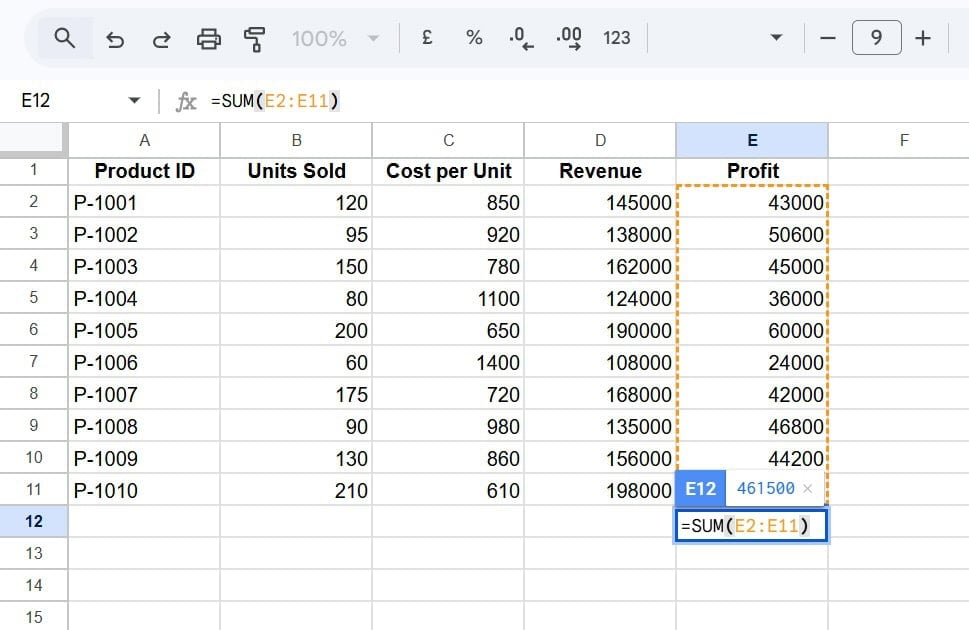
The command SUM() is used to add together all the selected cells. Of course, you must have a numerical value in the cell for it to work. The formula won’t work on any non-numeric cell.
Within the bracket, you need to specify the first and last cells of the segment of spreadsheet you want to add, separated by a colon.
So, if I want to add the contents of rows 3 through 7 in the first column, I would write the formula as: SUM(A3:A7). The formula works across multiple rows, too.
Also, this formula stays the same for both Google Sheets and Excel.
Look at this example:
Besides the simplest SUM function, you can also make the following types of additions:
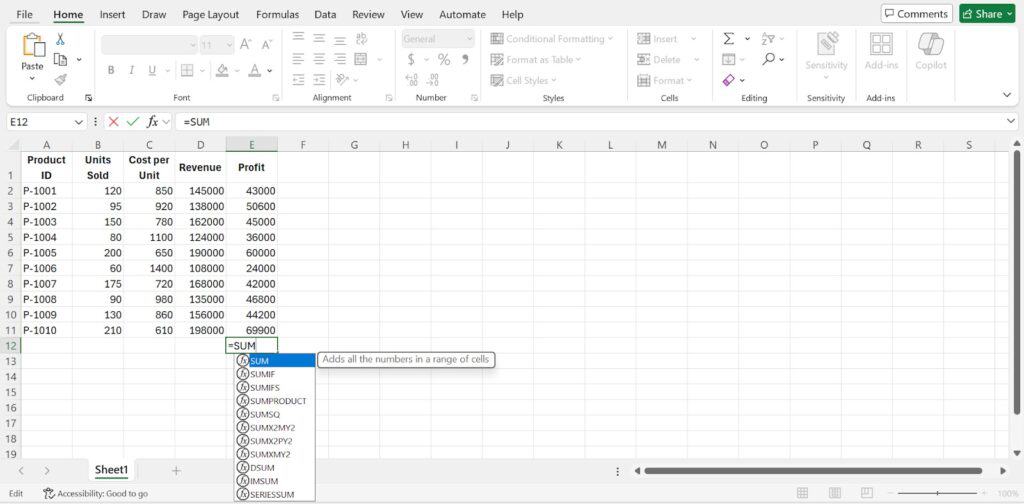
- SUMIF: Add numbers in a range that meet one condition
- SUMIFS: Add numbers in a range that meet multiple conditions
- SUMPRODUCT: Multiply corresponding values in arrays and then add the results
- SUMSQ: Add the squares of numbers in a range
- SUMX2MY2: Add the result of (x² − y²) for corresponding values in two ranges
- SUMX2PY2: Add the result of (x² + y²) for corresponding values in two ranges
- SUMXMY2: Add the squares of the differences (x − y)² for two ranges
- DSUM: Add values in a column that meet criteria defined in a database table
- IMSUM: Add complex numbers.
- SERIESSUM: Calculate the sum of a power series using given coefficients.
- AVERAGE for insights
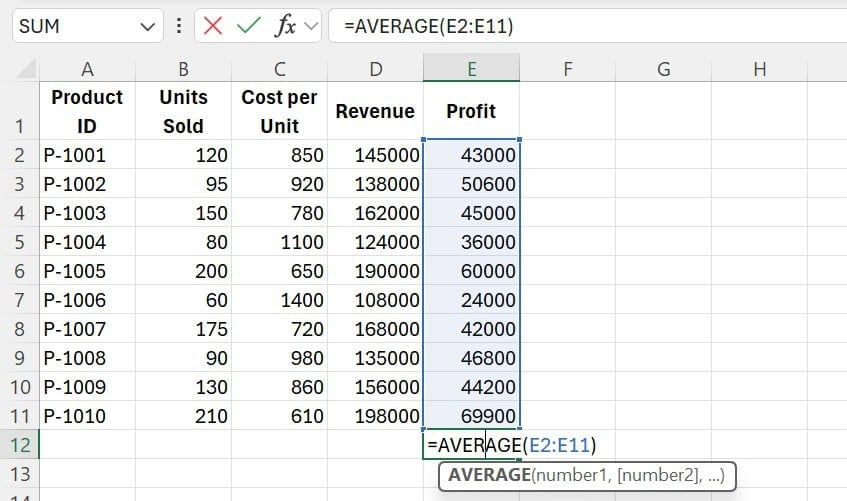
The AVERAGE() formula is used to calculate the mean of a given set of cells in your spreadsheet.
Again, the working is pretty much the same. You put the first and the last cell number in the parentheses separated by a colon, e.g., AVERAGE(E2:E11), and it will give you the mean for the selected cells.
Again, the formula for the average is the same in Excel as in Google Sheets.
Slight variations in the AVERAGE formula can help you with conditional calculations, such as:
- AVERAGE: To calculate the arithmetic mean of numbers in a range
- AVERAGEA: Use it when you want the average, including numbers, text, and logical values
- AVERAGEIF: This command is for the average of numbers that meet one condition
- AVERAGEIFS: This one calculates the average of numbers that meet multiple conditions
- DAVERAGE: Calculates the average of values in a database column that meet specified criteria
- COUNT to track items
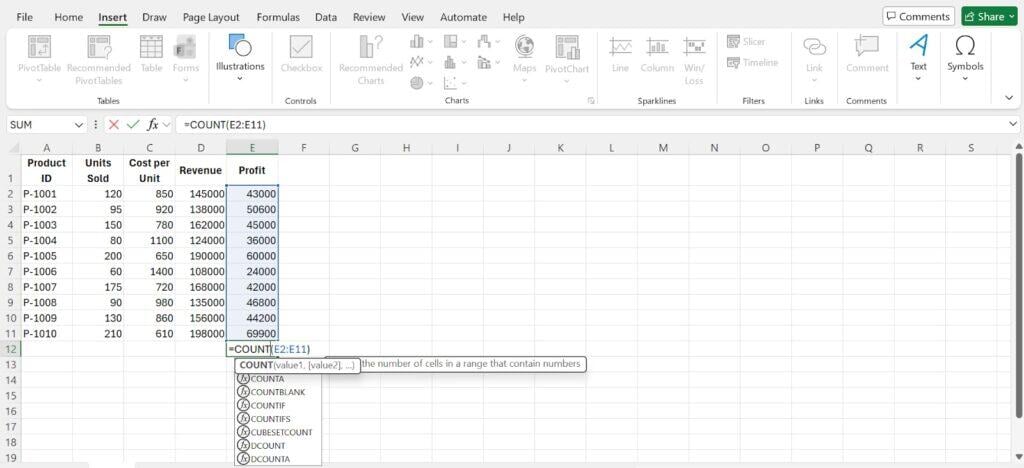
This command is useful to calculate the number of cells in your spreadsheet that contain numerical data.
It won’t make sense to use it when your data is limited to a handful rows only, but if you have hundreds of rows of data, and you want to know how many of these are numerical values, this is what you’re going to reach.
It is also written in a similar way, i.e., begin with the = sign, then mention the command COUNT, open the parenthsis, mention your first and last cell separated by a colon, and close the parenthesis.
The formula is the same in both Google Sheets and Excel.
For example, =COUNT(E1:E100)
Like the SUM and AVERAGE formulas, COUNT can also be used in a couple of different ways, i.e.,
- COUNTA: To count cells that are not empty (numbers, text, or values).
- COUNTBLANK: Only counts empty cells in a range
- COUNTIF: It counts cells that meet one condition
- COUNTIFS: Use it to count cells that meet multiple conditions
- DCOUNT: This one counts numeric values in a database column that meet specified criteria
- DCOUNTA: It is used to count non-empty values in a database column that meet specified criteria
Advanced Formulas For Data Analysis
For most users, the formulas I have discussed earlier will be more than enough. Some formulas, however, are needed for advanced calculations, and they come in very handy if your work involves data analysis.
- VLOOKUP for searches
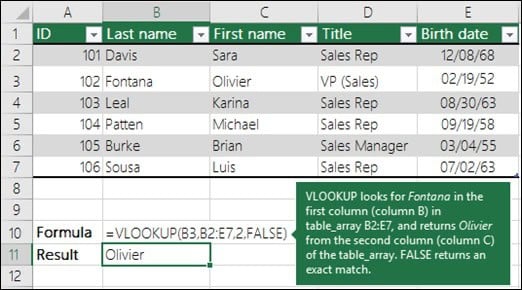
The VLOOKUP formula is used to find a value in a table and return related information from the same row.
In simpler terms, when you enter VLOOKUP, you prompt your spreadsheet to search for a value in the first column of a table, then give you a value from another column in that row.
In our sample sheet, if column A has product IDs, and column C has price per unit, we can use VLOOKUP to search for a certain product ID and get its price from column C.
It will be written as VLOOKUP(“P-1001”, A:C, 3, FALSE)
- IF statements for logic
The IF function is used to make logical decisions in a spreadsheet. It simply tells the sheet what to do when a condition is true and what to do when it’s false.
To write an IF statement, you begin with the = sign, include the IF command, open the parentheses, and then describe your condition.
After that, include a comma and mention what you want the sheet to do if the condition is met. Follow it with another comma and what you want to happen if the command is not met.
For example, if we imagine a sheet with students’ results, and we want to specify a condition that a score of 50 or above is a passing score and below 50 is a fail, we could use the IF logic.
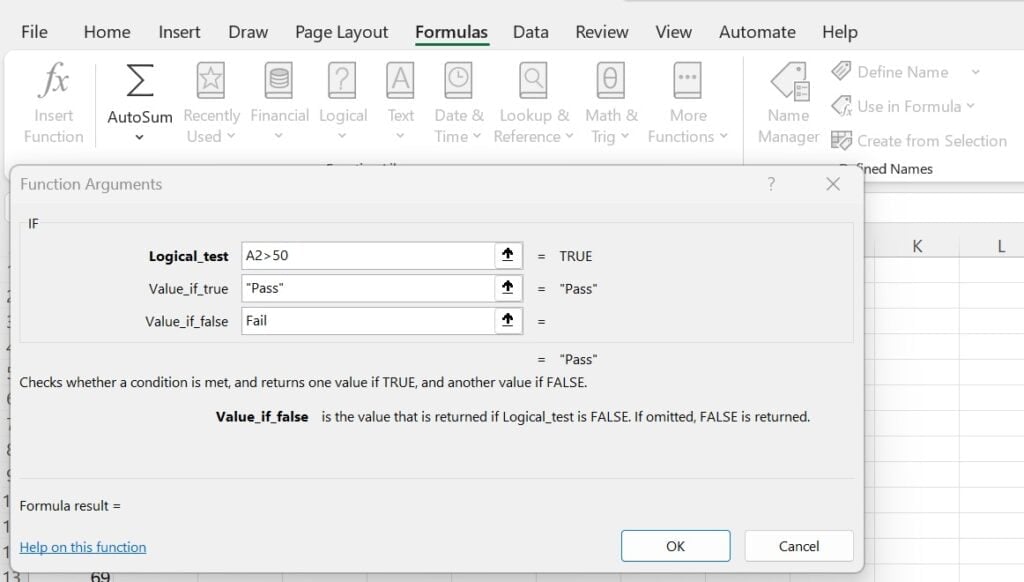
Here’s how you’ll write it: =IF(A1>=50, “Pass”, “Fail”)
The sheet will scan for the value in the cell, if it is greater than 50, it will show that the student has passed. Otherwise, it will mention that they failed.
- INDEX & MATCH for lookup
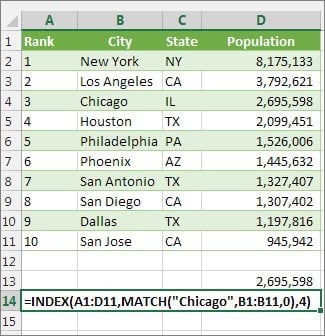
INDEX and MATCH are used together to look up information in a table in a more flexible way than the LOOKUP formula.
The MATCH function is responsible for finding the position of a value in a row or column. Use MATCH to look for a value in your table, and it won’t return the value itself. It will return a number that represents where the value appears.
For example, if a product ID is the fifth item in a list, MATCH will return 5.
The INDEX function uses that position number to return a value from a specific location in a table or column. So, it simply retrieves whatever value exists at the row you specify.
Tips To Avoid Common Formula Errors
As you might’ve seen already, both Excel and Google Sheets require that you enter your formulas with 100% accuracy.
Any errors in writing your formula will not deliver you results, you’ll just an errors message that says #N/A.
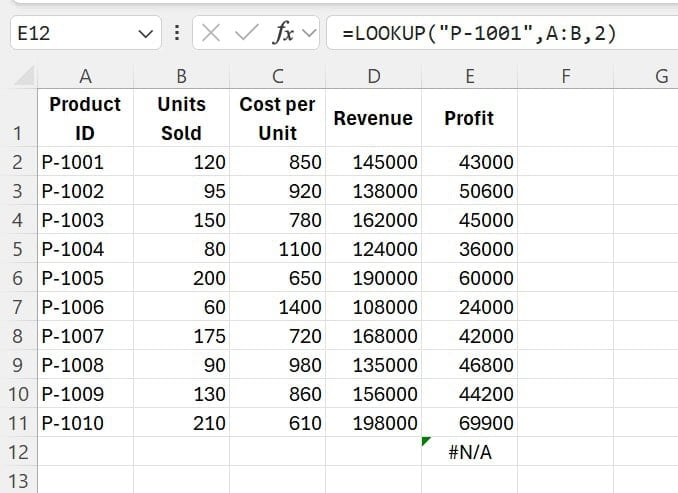
Here are some tips to help you avoid this error message.
- Check parentheses carefully
The formula has to be written in the exact format described above. If, by any chance, you left the parentheses open or just described your cell range without the parentheses, you will not get your data calculated.
Always make sure that you have both the open and closing brackets well in place. Also, ensure that there is a colon to differentiate the first and the last cell of your range.
- Watch data types
Spreadsheet formulas work best with certain types of data only. For instance, you can’t expect a mean value for data that is not quantifiable, i.e., descriptive forms of data.
Whenever inserting formulas, give your cells’ data a double check just so you’re not entering an invalid cell range.
- Avoid circular references
A circular reference means that your spreadsheet loops back to its own cell where it is described. It creates an infinite circulation loop where you can not get an answer, and it will only display an error message instead.
For example, if you enter SUM(A1:A10) in cell A10, you have created a circular loop in which the cell will continuously have to add whatever value is summed in the A10 cell, and this process will never end.
The formula needs to know its own result to find the value of the A10 cell.
Always ensure that the cell you have entered your spreadsheet formula in is not part of the formula cell range itself.
Combining Formulas For Better Efficiency
Combining formulas in spreadsheets allows you to solve complex problems more efficiently. When using simple formulas that I talked about earlier, you will be calculating things step by step across many cells.
In a combined formula, you can nest multiple calculations such that one formula feeds directly into another.
For example, you can combine IF with SUM to add together values that meet certain conditions only.
You can also combine COUNT or AVERAGE with conditions to analyze data more precisely.
That said, combining formulas does not come easily at first. There is a real learning curve, and if you jump into complex nested formulas without using simple ones a good number of times, you’ll end up confusing yourself.
So, always practice with simple formulas first. Once you’re comfortable, gradually build up by combining two functions, then three, and eventually more advanced setups.
Using Formulas For Real-World Tasks
Once you get the hang of these formulas, you’ll start noticing how often they apply to stuff you already do.
For instance:
- A small business owner could use the formula SUMIF to track expenses by category
- Or a teacher could combine IF with COUNTIF functions to flag students who are falling behind on assignments
- Same is the case with freelancers who manage client invoices. They can use a simple VLOOKUP command to pull client rates from a master list without scrolling through rows manually.
The thing is that knowing which formula fits your specific situation is almost half the battle. And that’s exactly where Undetectable’s AI Chatbot can be your guide.
You can describe what you’re trying to do in simple language, and it’ll suggest the right formula for your task.
You now have a spreadsheet-savvy coworker you can ping whenever you’re stuck, and this is not just limited to Excel or Google spreadsheet queries.
Explore how our AI Detector and Humanizer can enhance your content below!
Final Thoughts
I hope this article helped you learn a thing or two about spreadsheet formulas.
You can only get better at them the more you use them, and any time you’re confused about what formula string to use, just turn to Undetectable AI’s AI Chat, and it will help you decide what command will work best for the calculation you want.
You could also double-check your formula by running it through AI Chat to confirm you’re not making any errors.
Try out Undetectable AI today!