
Ever struggled to turn your ideas into slides only to run out of time before a client meeting or team update?
SlidesAI is offering a solution that promises to empower you to turn your texts into professional-grade slides in seconds.
By automating slide creation, Slidesai io saves you hours of formatting and design work.
But does SlidesAI live up to the hype? We’ll uncover more about SlidesAI features presentation creation capabilities in this review.
Key Takeaways
- SlidesAI is an AI presentation generator that turns your text into slides, bypassing the need for you to have graphic design skills.
- The platform can be integrated into either Google Slides or PowerPoint
- You must review and refine SlidesAI’s output before using it in any capacity.
What Is SlidesAI?
SlidesAI is a presentation generator that works directly with Google Slides to turn your text into polished presentations via AI.
It is a digital assistant that handles the heavy lifting of design and layout associated with creating slides.
For this reason, you no longer have to spend hours dragging text boxes around and debating whether the Comic Sans font is ever acceptable or not.


Never Worry About AI Detecting Your Texts Again. Undetectable AI Can Help You:
- Make your AI assisted writing appear human-like.
- Bypass all major AI detection tools with just one click.
- Use AI safely and confidently in school and work.
Main Features of SlidesAI
SlidesAI offers you a robust toolkit that streamlines your presentation creation from initial concept to final polish.
However, there are other core presentation features you should know:
- AI Slide Generation
This feature is the bread and butter of SlidesAI. With the SlidesAI Google Slides integration, you can enter your text and prompt the AI to create the slide.
After that is done, the AI will generate a complete presentation with multiple slides for you directly in Google Slides.
In case you don’t have your thoughts well outlined, the AI can arrange your ramblings into logical pieces and recommend layouts that would suit your purpose.
This slide generator is fairly competent at understanding context. However, you’d still have to go through the result to ensure it conveys your desired message.
- Customizable Designs
Undoubtedly, you don’t want your presentation to look cheap or undermine your message when presenting to executives and your potential audience.
SlidesAI solves this problem by offering you 150+ professional templates that you can easily customize to match your brand and personal style.
That’s not all; SlidesAI Io can auto-insert AI-generated images for you, or you can add stock images and use them as you see fit.
This customization strikes a balance between automation and creative control, making the generated slides truly yours.
- Content Tools
These tools are your editing collaborators within the SlidesAI panel that help you paraphrase sentences for clarity and summarize long text into digestible bullet points for that snappy and impactful presentation or lecture you have soon.
- Slides AI Extension
The browser extension makes SlidesAI io even more accessible. It allows you to generate presentations without leaving your workflow.
This doesn’t take much from you, as all you need to do is install the extension via Google Slides or your PowerPoint add-ins.
The AI would automatically integrate into your native workflow, helping you juggle multiple projects at once.
- SlidesAI GPT
For those who use ChatGPT, there’s a custom SlidesAI GPT that bridges the gap between conversational AI and presentation creation.
You can brainstorm your ideas on the SlidesAI GPT interface through an engaging conversation to get a refined output.
The GPT will then give you a structured outline based on your specifications. If the result is to your liking, then you can go ahead and generate your slides.
How SlidesAI Works
Primarily, SlidesAI is a presentation creation tool that processes your input through natural language algorithms (NLP) to analyze the sentence structure and logical groupings so that it can prioritize main points versus supporting details.
Now, for SlidesAI to transform your ideas into finished presentations, do the following:
Install and Launch SlidesAI
First, you have to install SlidesAI from the Google Workspace Marketplace, or the PowerPoint add-in if you prefer working in PPTX format. This process will take you about a minute with a free account signup.
Next up, you give the extension access to your Google Slides account and launch the extension by opening a new or existing presentation.
Your work will be organized in one place, sparing you the stress of jumping around different tabs.
Create and Customize Your Presentations
Now, with the extension open, you have several input options. You can either enter a topic and let the AI generate content from scratch or paste your existing text that needs to be converted into slides.
The AI is pretty interactive and flexible for you to make whatever customization you need to the slides, from the template, layout, and presentation type to tone.
According to SlidesAI io, it takes the AI seconds to process your input and generate a complete presentation.
Not to worry, the customization happens directly within Google Slides or PowerPoint, so you can use familiar editing controls alongside SlidesAI’s automated features.
Refine and Download the Slides
You can begin reviewing each slide for accuracy after the slides have been generated. You mustn’t skip this step, else you’ll miss any potential errors the AI might have made.
Thankfully, you can edit any element in the generated slides and refine things to your liking. So, when you’re satisfied with the result, you can download or share it.
Testing SlidesAI’s Accuracy
We couldn’t just take SlideAI’s words at face value; hence, we had to test its accuracy using the widely certified testing guideline inspired by ZDNet, which found our AI detector to have 100% accuracy when compared to 10 other detectors.
Unfortunately, the platform doesn’t have an AI detector. Still, we tried its slide creation feature in Google Slides to see the quality of its output.
You’d have to go through seven steps before you can get your AI-generated slides.
Here’s how we set up the AI to generate slides, walking you through the platform’s entire generation process.

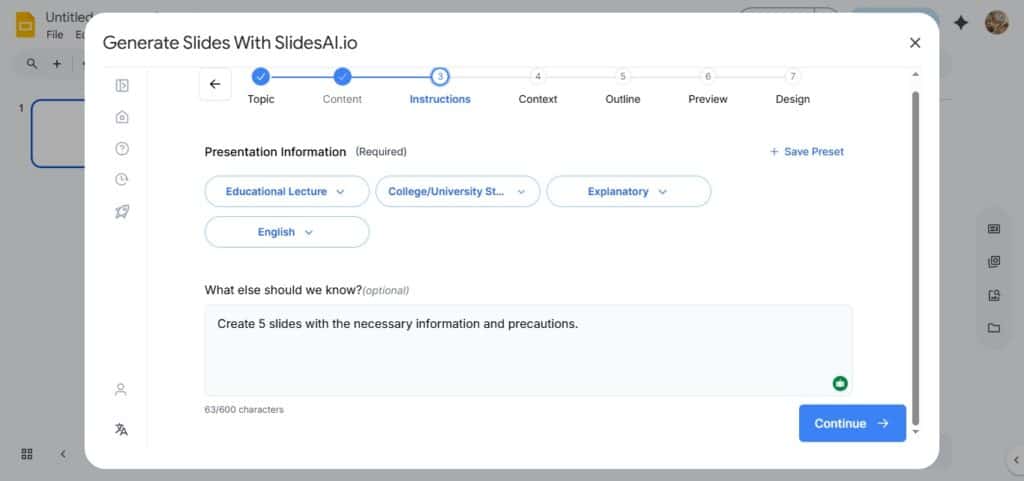
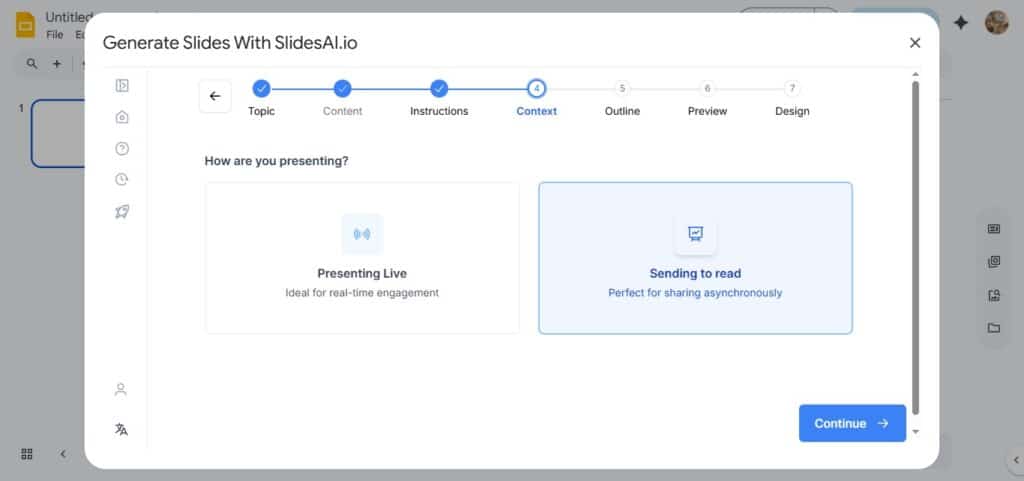
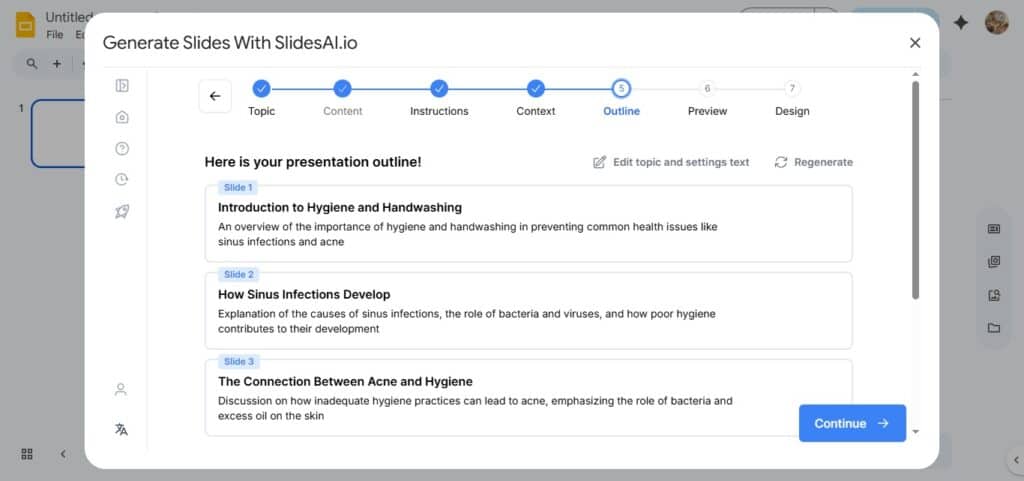
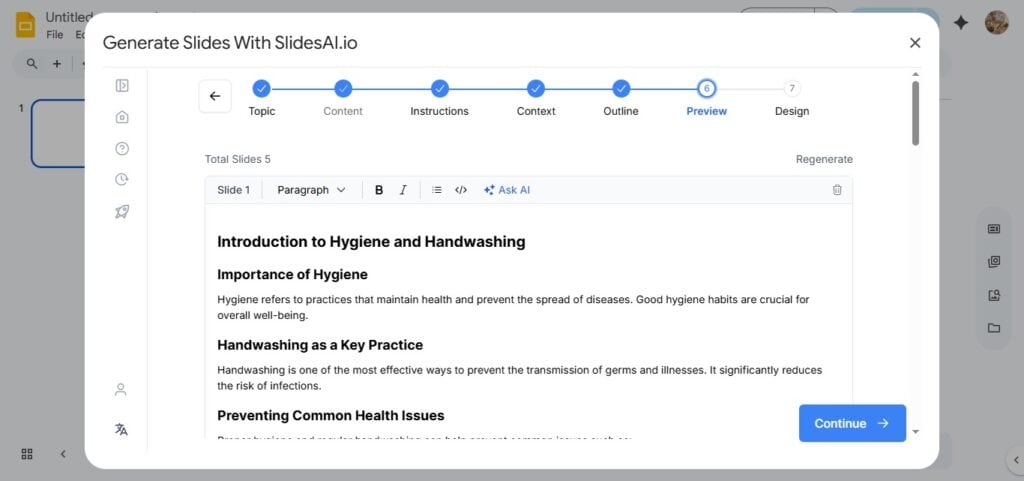

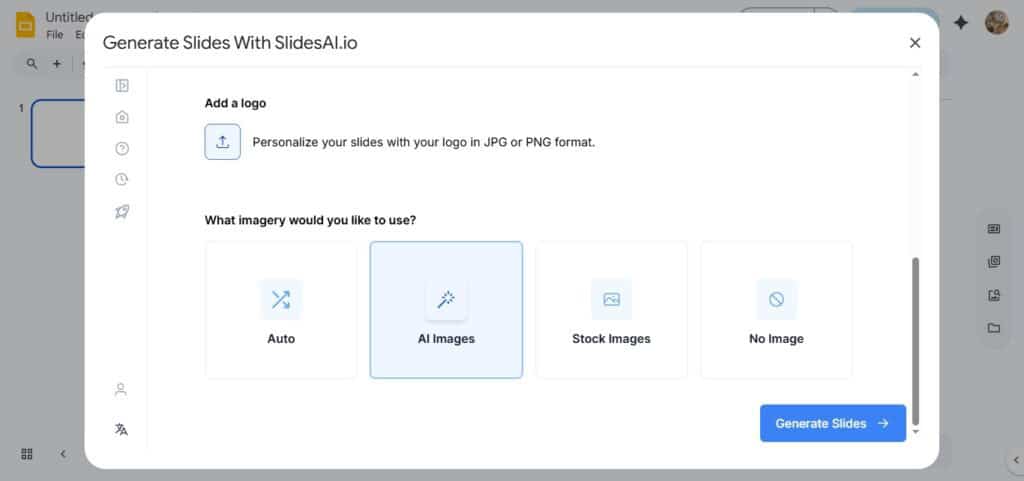
After all the steps, the AI generates the slides, and they’re automatically added to Google Slides. The results were great, and with a little tweaking here and there, we could elevate the slides’ quality.
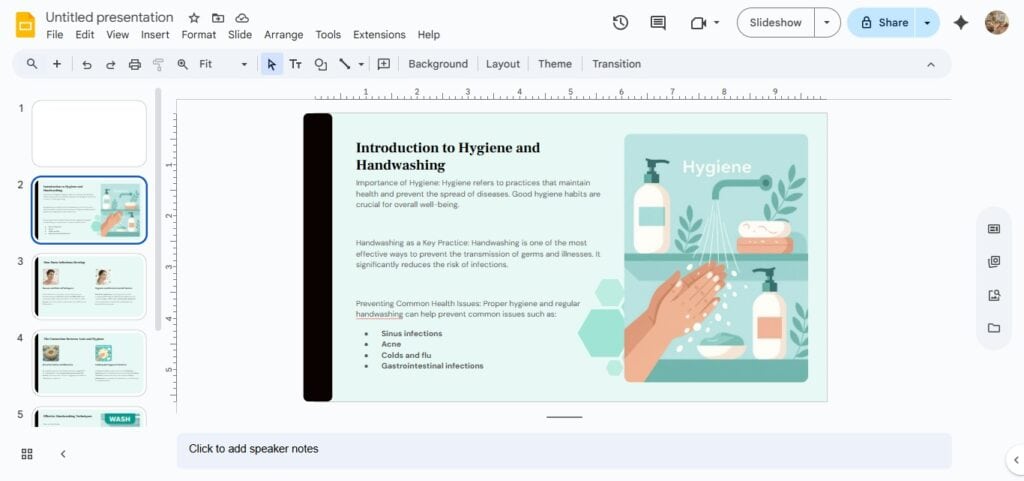
However, you can’t wholly rely on SlidesAI for the slide creation. You need to edit the text, layout, colour, font, and even images to match your vision.
On the upside, the platform is flexible and provides multiple customization features.
But that’s just half of the picture. Without an AI detector or humanizer, you’d be stuck relying on SlideAI’s generated text, which would raise questions when your educator or investors notice glaring AI traces.
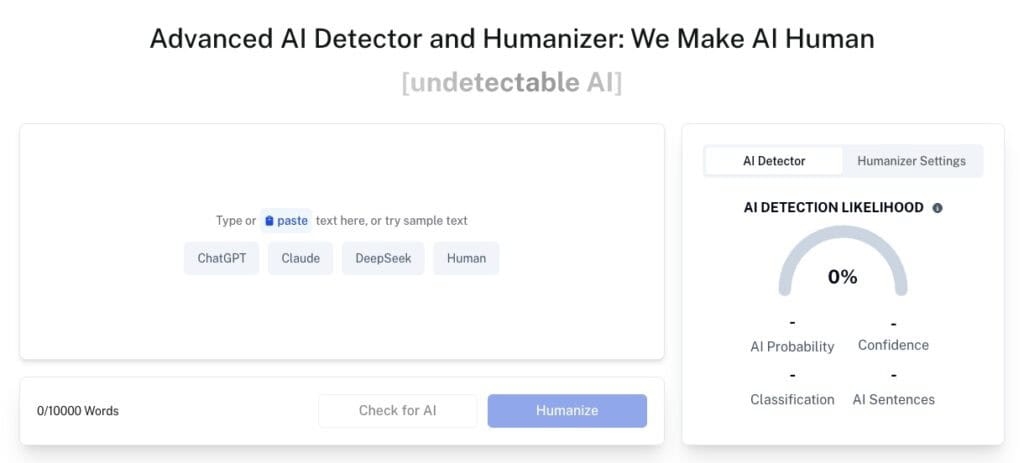
You can avoid any possible AI accusations by using our AI Detector and Humanizer to detect areas flagged as AI-generated text and humanize them to be natural and match your intended tone and audience.
Pros and Cons of SlidesAI
SlidesAI offers impressive slide generation automation capabilities, but there are trade-offs to consider to determine whether this platform fits your specific needs.
| Pros | Cons |
| It can generate a complete presentation in minutes for you instead of hours, and save you time when facing tight deadlines. | The AI produces generic content and visuals that lack unique flair. So, you have to refine the output later. |
| Users get native integration with Google Slides and PowerPoint for uninterrupted workflows. | The AI struggles with complex data, sometimes misrepresenting charts and details. |
| The platform’s interface has a minimal learning curve. | The free version has strict yearly limits on presentations and features, pushing most serious users toward paid plans. |
| It supports 100+ languages and 150+ templates for global teams and functions. | The platform requires a stable internet, making offline use impossible. |
| The SlidesAI pricing for their paid plans makes sense if you create presentations frequently, compared to hiring designers. | The customer support can be slow or less responsive during peak times. |
SlidesAI Comparisons
SlidesAI isn’t the only AI-powered presentation platform in the market. It has competitors with different strengths and feature sets that promise to give you value for your money.
| SlidesAI | Plus AI | Gamma |
| Works natively within Google Slides and PowerPoint. | It also works natively within Google Slides and PowerPoint for a seamless workflow. | It’s a standalone web platform that requires exporting to traditional formats. |
| It has strong content structuring and is good at organizing information logically. | This has excellent contextual understanding and produces more refined initial output. | The platform has outstanding design aesthetics and prioritizes visual appeal and modern layouts. |
| Users get moderate theme and layout options. | There’s extensive customization with AI-assisted design suggestions. | It has a highly flexible drag-and-drop interface with sophisticated design controls. |
| This tool has a professional but somewhat template-based appearance. | It prioritizes business-focused designs with conservative aesthetics. | The platform is often praised as having the most beautiful and visually appealing output. |
| It has a low learning curve due to the familiar Google Slides/PowerPoint environment. | This also has a low learning requirement due to its straightforward interface within known tools. | The system is less adaptable for newbies to learn, but it becomes intuitive once it’s familiar. |
| It’s best for users who need presentation creation within the existing Google/Microsoft workflow. | Business teams and professionals wanting high-quality AI assistance without leaving PowerPoint/Slides would like this. | This is for creatives and marketers prioritizing visual impact and analytics-driven presentations. |
| This has a more rigid design system and fewer advanced visual options. | The tool can be slower to generate and occasionally overcomplicates simple content. | This program requires exporting for traditional presentation formats and is less familiar to corporate users. |
Who Can Use SlidesAI
One of the greatest strengths of Slidesai. Io is its versatility across different user groups.
And we’ve found how these different groups can leverage SlidesAI’s capabilities:
- Educators
Teachers and professors always face the constant challenge of creating engaging educational materials while managing heavy workloads.
Luckily, the platform excels at structuring educational content logically and turns lesson content into interactive presentations.
As a teacher, it must be a relief to free up time for actual teaching rather than slide formatting.
In fact, you can create quizzes and assessments with multiple-choice questions and discussion prompts.
When you add in SlidesAI’s Google Slides integration, students can even access these materials easily through Google Classroom or shared drives.
- Professionals
Business professionals juggling multiple projects can use SlidesAI to maintain presentation quality without sacrificing hours. The platform handles various corporate presentation types, from quarterly reports and sales pitches to training materials.
The tool particularly shines for professionals who create similar presentations repeatedly with different data.
This consistency in structure makes it ideal for sales teams or executives who prioritize speed over artistry.
- Students
Students at every academic level can benefit from SlidesAI’s ability to transform research and notes into polished presentations.
The text-to-slides feature on the platform helps students produce professional-looking work that stands out for their projects if they struggle with visual design.
This bridges the gap between strong academic content and effective visual communication.
As a plus, budget-conscious students will appreciate SlideAI’s pricing for students, valued at $5.00 per month if they sign up for their annual plan.
Overall, you’ll be billed $60.00 per year by the platform.
Can SlidesAI Detect AI-Edited or Paraphrased Text?
No, SlidesAI can’t detect AI-edited or even paraphrased content as the platform isn’t equipped with an AI detector.
This demonstrates that users are left stuck with simple AI-generated texts that can be flagged and undermine the quality of their presentation.
A great solution to this would be for you to use a tool like our AI Paraphraser to rephrase SlideAI’s generated text to make it more natural.
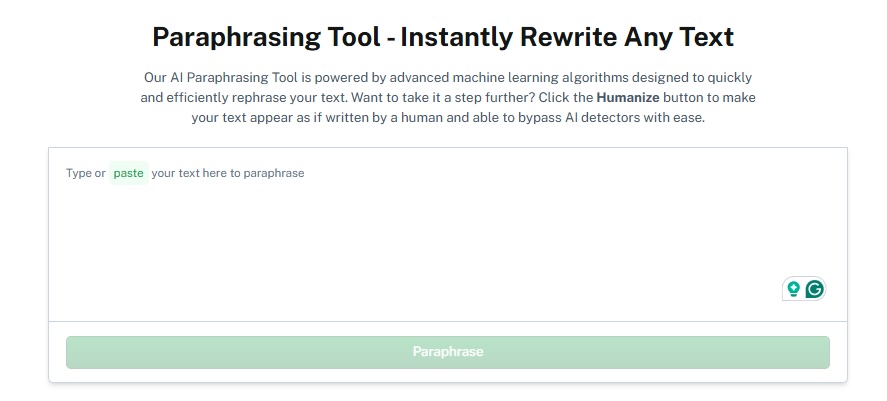
Or better still, use our AI Stealth Writer to create your content from scratch and feed it to SlideAI to generate your slides, and sail through AI detectors stealthily.
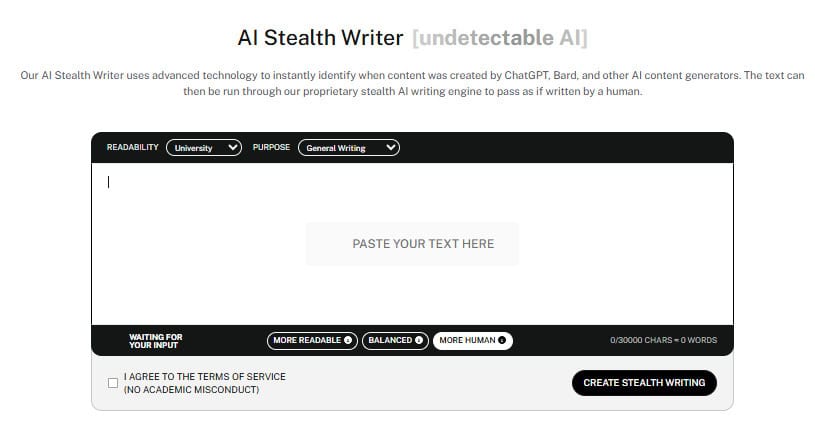
Check your content using our AI Detector and Humanizer below!
Final Thoughts
Creating your presentations doesn’t have to be a time-consuming struggle anymore.
Throughout this review, we’ve laid SlidesAI bare to you and weighed the pros and cons to help you make an informed decision.
From our tests, the platform actually delivers on its promise of faster presentation creation, though it works best when paired with human oversight.
Even at that, SlidesAI leaves you without an AI detector or humanizer to make your AI-generated content undetectable.
You can check out Undetectable AI to bypass AI detection and maintain quality presentations with our tools.